Notifications and app · Guide
Choose notifications by reason
Under Notifications you choose, for each reason, whether you hear about it by email, in the app or both. Two main switches turn off a whole column.
Last reviewed:
On this page
Goal
Hear only about what really concerns you, through the channel you actually read.
Before you start
- You are signed in with a team account.
- Your role can see reports.
Steps
Open Notifications
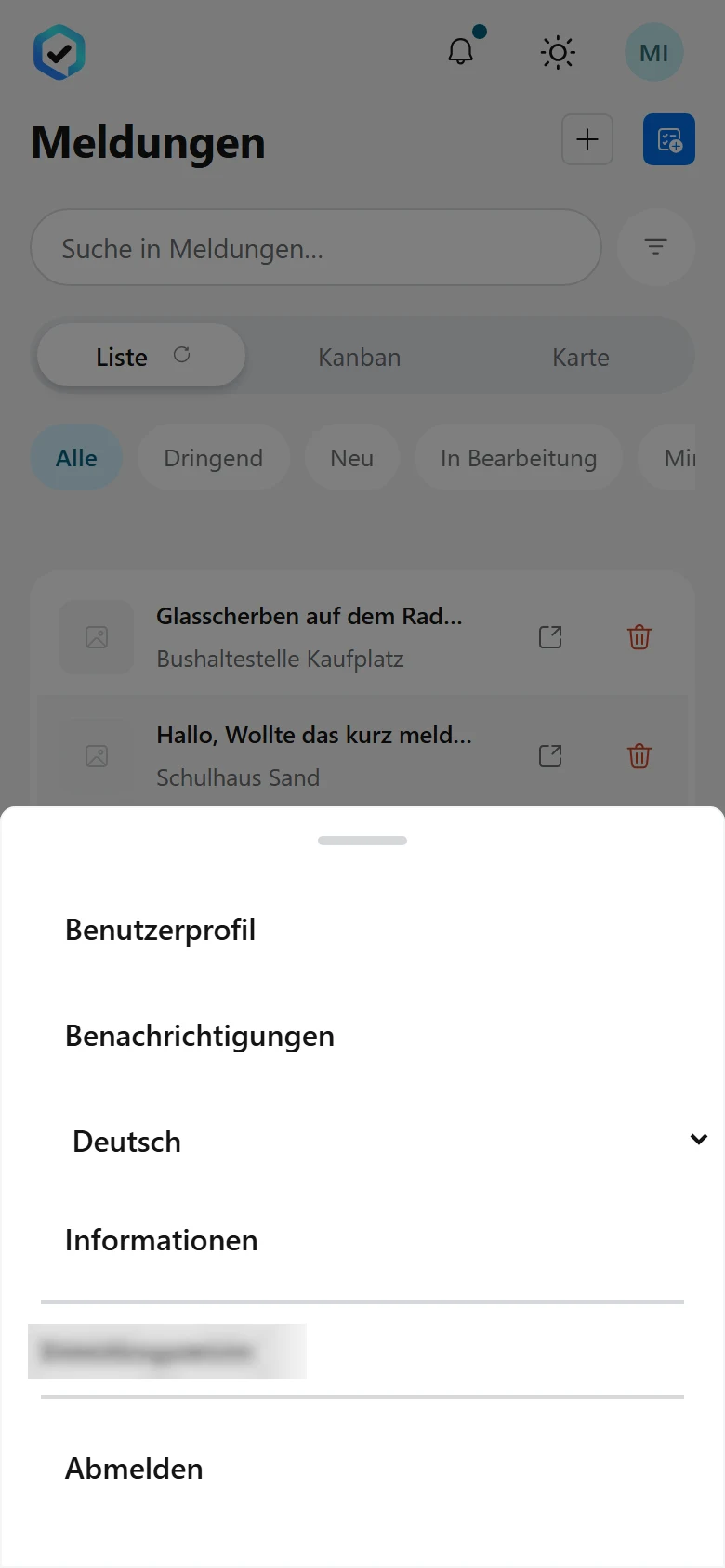
Tap your profile picture or initials at the top right and choose «Notifications».
Example view with test data: the menu behind the initials at the top right, with the «Benachrichtigungen» (Notifications) entry. The version row is blurred.
Open image at full sizeCheck the main switches
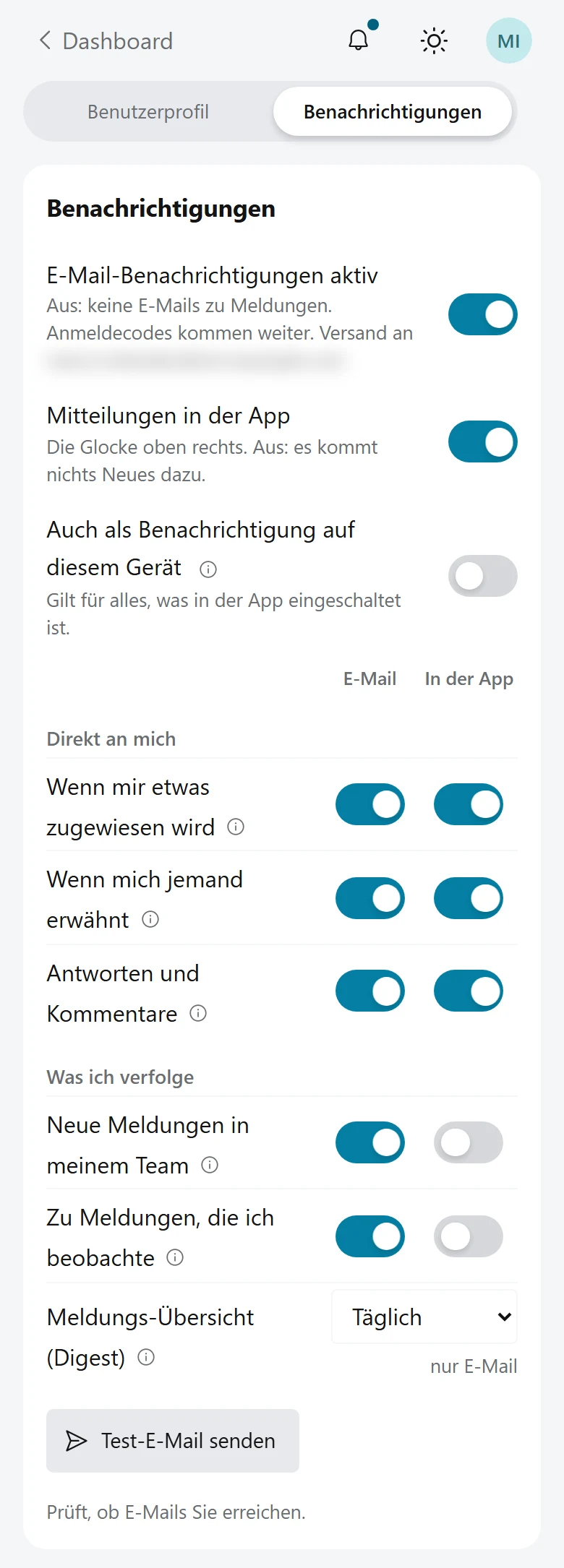
«Email notifications on» covers every email about reports, «In-app notifications» covers the bell at the top right. When a main switch is off, its whole column stays silent.
Example view with test data: the main switches at the top, then one switch per reason for «E-Mail» (Email) and «In der App» (In the app), and the report digest last. The address is blurred.
Open image at full sizeChoose per reason
In the table, each row is one reason: «When something is assigned to me», «When someone mentions me», «Replies and comments», «New reports in my team» and «About reports I watch». Switch «Email» and «In the app» on or off for each row. The change applies at once.
Choose the report digest
In the row «Report digest», choose «Off», «Daily», «Weekly» or «Monthly». The digest arrives by email only, weekly on Mondays, monthly on the 1st.
Test the delivery
Tap «Send test email». When the message arrives, emails reach you.
Read notifications in the bell
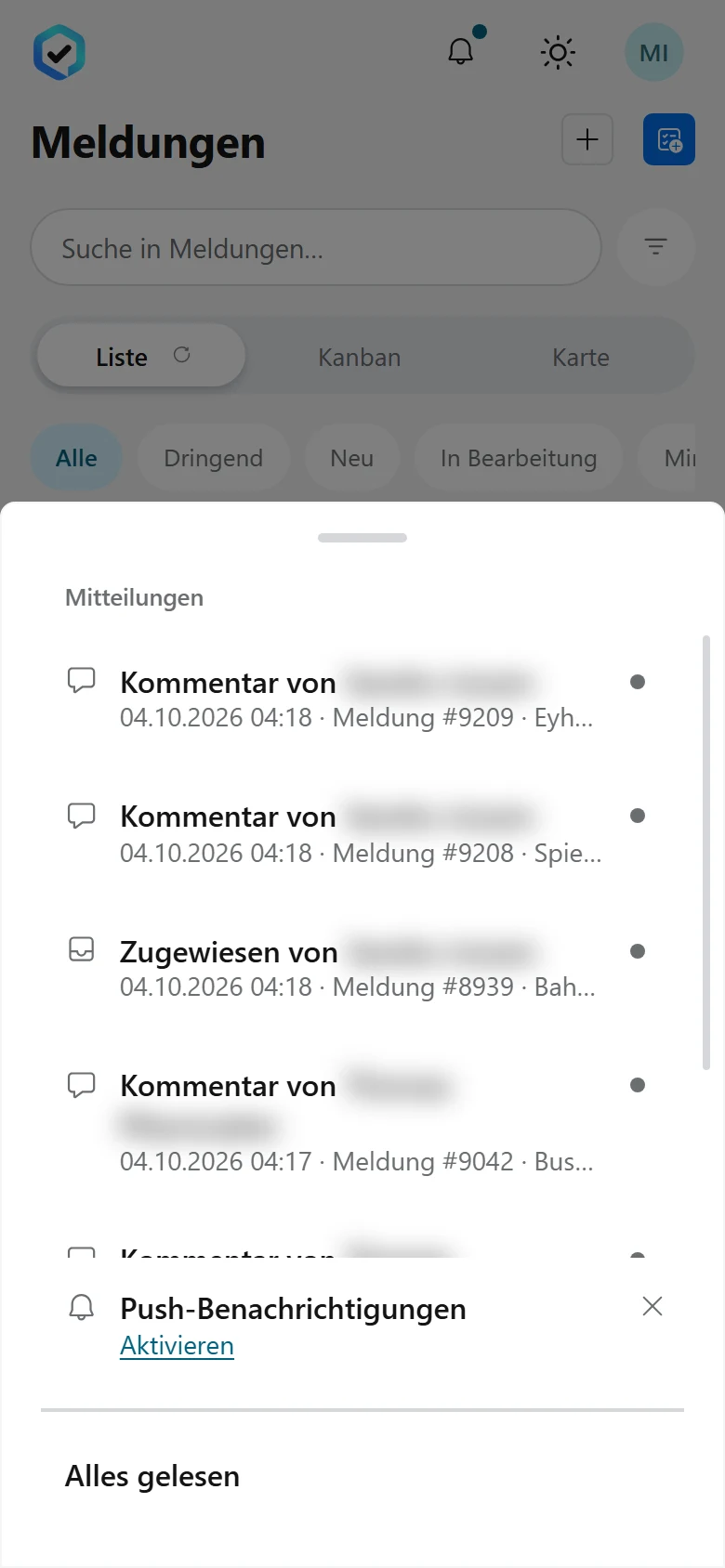
A dot on the bell means something is unread. Tap the bell: each row names its reason and leads to the report. Opening the report marks the row as read. «Mark all as read» clears them all at once.
Example view with test data: the open bell shows «Mitteilungen» (Notifications) with unread rows and «Alles gelesen» (Mark all as read) at the bottom. Names are blurred.
Open image at full size
Check the result
You hear only about the reasons you switched on, and only through the channels you chose.
If something goes wrong
- The «In the app» column is missing.
- In-app notifications are switched off for your installation. Contact your administrator.
- The email switches are locked and a note appears above them.
- Emails to staff are switched off for your installation, or your role cannot see reports. Only your administrator can change that.
- The report digest cannot be chosen.
- If «Email notifications on» is off, switch it on. If it says «The report digest is switched off on this installation.», only your administrator can switch it on.
- Not every change to a watched report reaches you.
- Open the report and tap «Watching». Under «What do you want to hear about?», choose «Everything» and save.
Common questions
What applies if I never changed anything?
The Notifications page shows what applies to your account. In the app, assignments, mentions, and replies and comments are on; new reports in your team and watched reports are off. Which emails a new account receives is set by your administrator.
Why does an email arrive a few minutes later?
Replies, comments and changes to watched reports are collected. They leave as one message per kind once nothing new was added for 10 minutes, otherwise after 30 minutes. If nobody is active in the workspace at that moment, the email can come later. Assignments and mentions arrive at once.
Do sign-in codes still arrive when emails are off?
Yes. The main switch covers only emails about reports.
How long do notifications stay in the bell?
90 days. The bell shows up to 15 recent ones; you reach older ones through the report list.