
Notifications and app · Guide
Install the workspace as an app
The workspace can be installed from the browser as an app on your phone or computer. It then opens in its own window from its own icon, without an app store.
Last reviewed:
On this page
Goal
Open the reports with one tap, like an app.
Before you start
- You have a team account and are signed in.
- A current browser: Chrome or Edge on Android and computers, Safari on iPhone and iPad.
- Your workspace offers browser notifications.
- Your role can see reports.
Steps
Android with Chrome
Open your workspace (the address where you sign in) in Chrome. Open the Chrome menu with the three dots and choose «Install app», or «Add to Home screen» depending on the version. If Chrome offers the installation by itself, confirm there.
Computer with Chrome or Edge
Open your workspace in Chrome or Edge. Click the install icon in the address bar and confirm with «Install».
iPhone and iPad with Safari
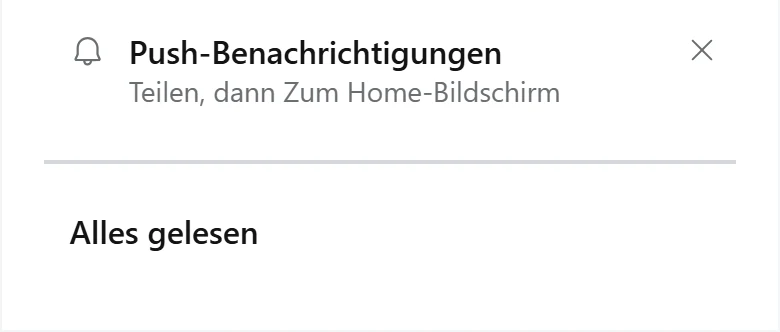
Open your workspace in Safari. Tap «Share» (if it is missing, first «•••»), then «Add to Home Screen», and confirm with «Add». The bell names the same steps.
Example view with test data, as an iPhone browser shows it: the bell names the steps «Teilen, dann Zum Home-Bildschirm» (Share, then Add to Home Screen).
Open image at full sizeOpen the app
Tap the new icon. The app opens in its own window without an address bar and starts at the reports. If it asks you to sign in, sign in once.
Check the result
The app has its own window and its own icon: your municipality's logo when it suits an app icon, otherwise the Power Local mark. The status bar matches the colour of the page.
If something goes wrong
- The browser offers no installation.
- Sign in first and open a page of the workspace. If the offer still does not appear, your workspace does not offer the app at the moment. Contact your administrator.
- «Share» or «Add to Home Screen» is missing on the iPhone.
- Open the workspace in Safari. If «Share» is missing, tap «•••» first. Scroll down in the Share menu; the entry is often further down.
- The app's name or icon is out of date.
- Android picks up changes by itself after a while and may ask you once to accept them. On the iPhone, remove the app from the Home Screen and add it again.
Common questions
Are there shortcuts on the icon?
On Android, a long press on the icon shows «Reports» and «Inventory», as long as every role of your installation can open those areas.
Why does the name have an addition?
This is a test installation. The installation for daily work has none.
Do I need the app for notifications?
Not on Android and computers, where the browser is enough. On iPhone and iPad, yes.