
Notifications and app · Guide
Turn on notifications on your device
What arrives in the bell can also appear as a notification on your phone or computer. You switch this on for each device separately, from the bell or under Notifications.
Last reviewed:
On this page
Goal
Hear about new notifications even when the app is not open.
Before you start
- «In-app notifications» is switched on under Notifications.
- Your installation offers browser notifications.
- On iPhone and iPad: iOS 16.4 or later.
Steps
iPhone and iPad only: install first
Open your workspace (the address where you sign in) in Safari. Tap «Share» (if it is missing, first «•••»), then «Add to Home Screen». Then open the app from its icon, sign in if it asks, and continue there.
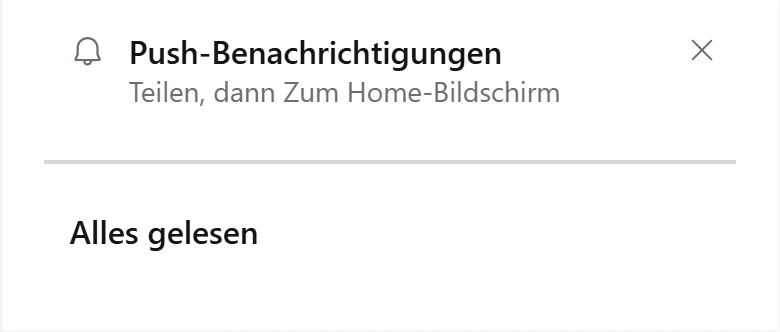
Example view with test data, as an iPhone browser shows it: in the row «Push-Benachrichtigungen» (Notifications on this device), the bell first says «Teilen, dann Zum Home-Bildschirm» (Share, then Add to Home Screen).
Open image at full sizeTurn on in the bell
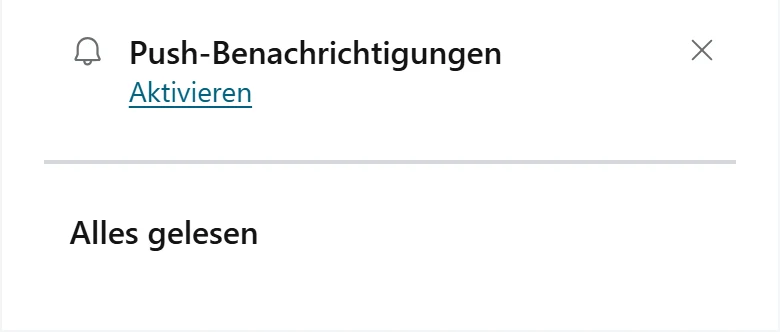
Tap the bell. In the row «Notifications on this device», tap «Turn on» and allow the browser's request.
Example view with test data: below the notifications, the bell shows the row «Push-Benachrichtigungen» (Notifications on this device) with «Aktivieren» (Turn on) and a cross for «Nicht jetzt» (Not now).
Open image at full sizeOr under Notifications
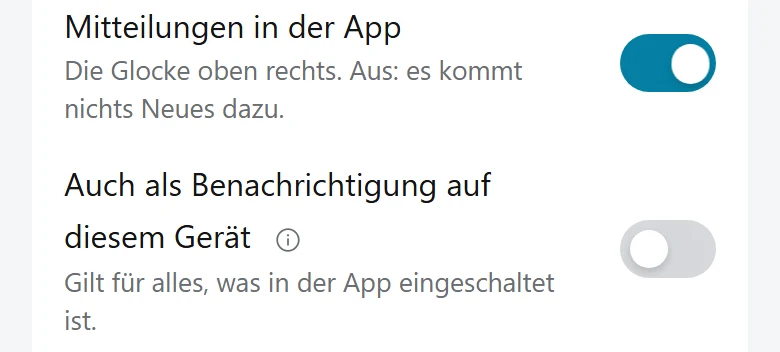
Open «Notifications» from your profile picture and switch on «Also as a notification on this device».
Example view with test data: below «Mitteilungen in der App» (In-app notifications) sits the switch «Auch als Benachrichtigung auf diesem Gerät» (Also as a notification on this device), still off here.
Open image at full sizeCheck with a test
Open «Notifications» and tap «Send test» below «Also as a notification on this device». Shortly afterwards, «Notifications work.» appears on the device.
Check the result
New notifications in the bell also appear on this device, and tapping it opens the report. What arrives is decided by the «In the app» column under Notifications.
If something goes wrong
- The request was declined, or Notifications says «Blocked in the browser.»
- Allow notifications for the workspace: in Chrome and Edge through the icon left of the address, for the iPhone app under «Settings» > «Notifications» > the app's name. Close and reopen the page or app and switch on again.
- Nothing appears after «Send test».
- In the device's settings, allow notifications for the browser, or on the iPhone for the app, and turn off «Do Not Disturb» or a Focus.
- It says «First switch on in-app notifications.»
- Switch on «In-app notifications». The device receives only what the bell receives.
- It says «This browser cannot do this.»
- Use a current browser such as Chrome, Edge, Firefox or Safari. On iPhone and iPad it needs iOS 16.4 or later.
- The switch is missing, or it says «This installation cannot send notifications.»
- Your installation does not offer browser notifications at the moment. Contact your administrator.
- It says «Delivery to this device is failing.»
- Tap «Send test». If nothing arrives, switch «Also as a notification on this device» off and on again.
Common questions
Does the device buzz for every small change?
No. A notification that is already unread does not alert again. After 5 notifications in 10 minutes, only one summary with the number of unread notifications follows.
Does a notification I read also disappear on my other devices?
Yes, as soon as the app is opened there or the next notification arrives.
What does the number on the app icon show?
The number of unread notifications, where the device can show a number on the icon.
How do I switch a device off again?
Switch off «Also as a notification on this device». Signing out also ends notifications on this device until you switch them on again after your next sign-in.