
Reports · Guide
Process incoming reports as a team
Signed-in team members can review reports on a board, in a list or on a map, filter for relevant cases and maintain ownership, status and urgency on each report.
Last reviewed:
On this page
Goal
Bring a new report into the shared workflow without losing its location or history.
Before you start
- You have access to your organisation's workspace.
- A report has arrived or an internal task has been created.
Steps
Review reports
Open the reports area. Choose the board, list or map according to whether you need to compare status, details or locations.
Find the relevant case
Use the available filters and open the report. Check its description, location, object context and any photos.
Assign the work
Set the appropriate category, department or responsible person. Maintain the status, urgency and, when needed, a due date.
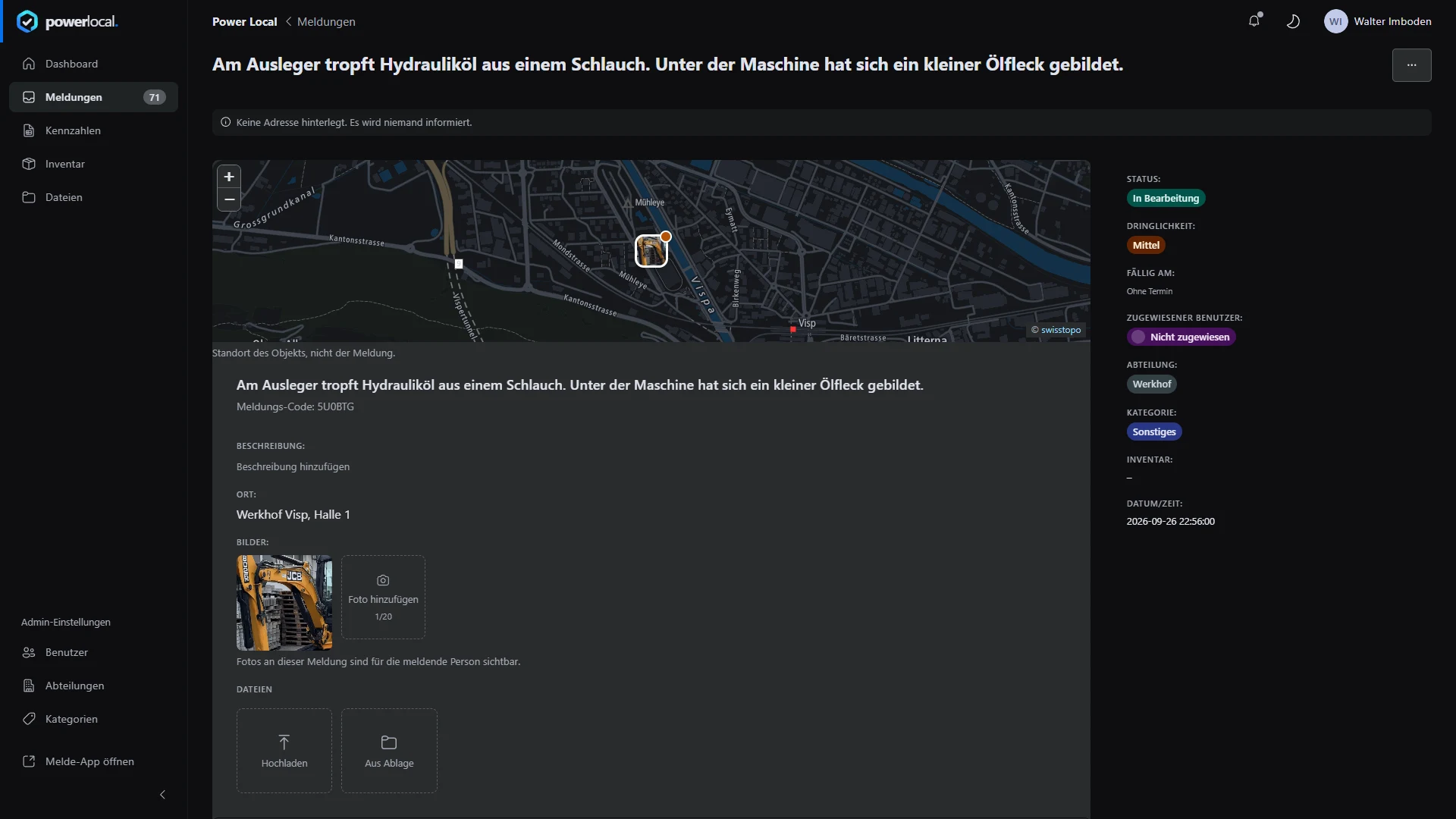
Example view with test data: the team report shows status «In Bearbeitung» (in progress), urgency «Mittel» (medium), department «Werkhof» (works yard) and category «Sonstiges» (other), with an unassigned user; the case and location are test data, and the photo is an approved object image.
Open image at full sizeContinue the record
Record important checks and progress on the report so the next person can continue from the same point.
Check the result
The case remains findable in the shared workspace with its ownership and current progress.
If something goes wrong
- An expected report is not visible.
- Check the active filters and selected view first. If it is still missing, ask the responsible team to check intake and your access.
- The place or object context is unclear.
- Review the report details and map point before assigning the case to a team.